
Tasks (Kanban)

Structure in your project work

Tasks organize the daily work within a project. With the Kanban board you keep track of all tasks – from Open to Done. Via drag & drop you change the status, start the timer directly from the task and always know what you're currently working on.

FlowBillTasksKanban & time tracking
  • Kanban board view

  • Drag & drop status

  • Set priorities

  • Start timer directly

  • Time per task

  • Assignment & service

  • Kanban board view
  • Drag & drop status
  • Set priorities
  • Start timer directly
  • Time per task
  • Assignment & service
01

Kanban board view

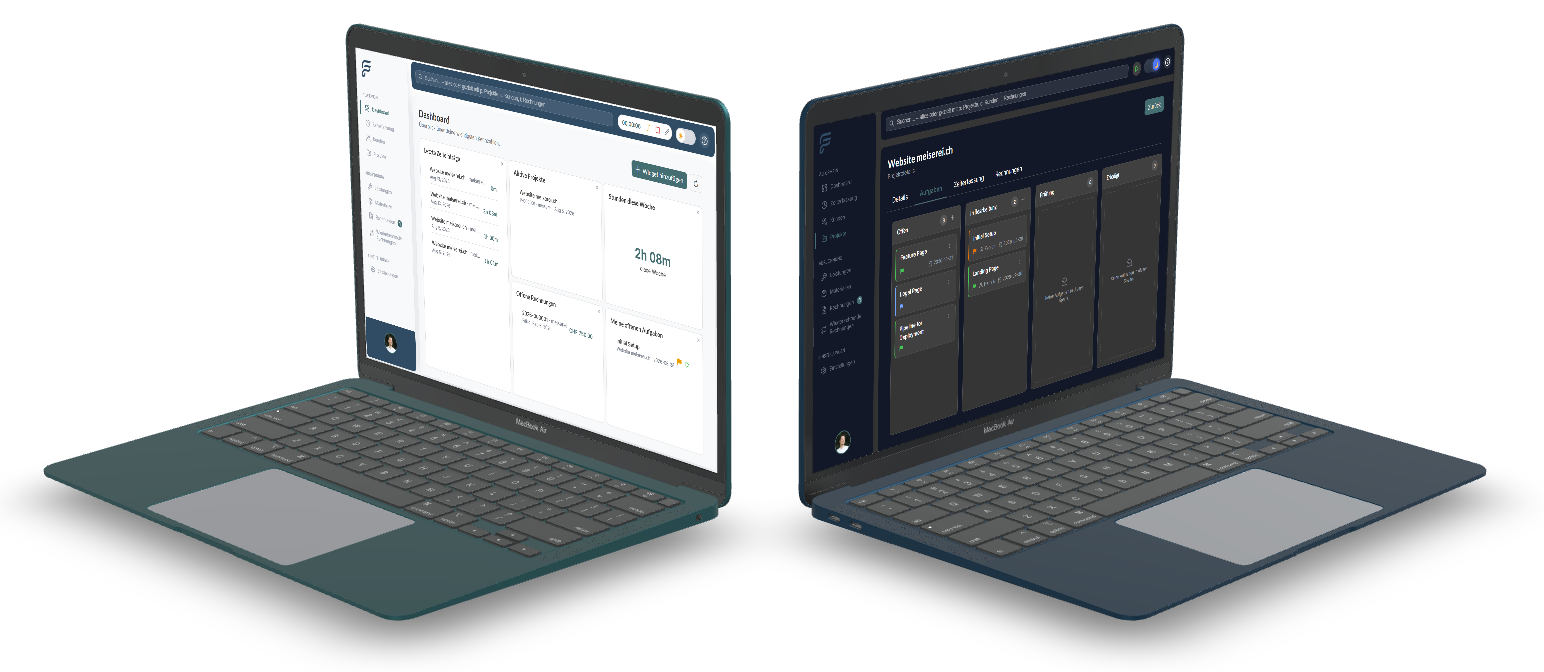
Each project has its own Kanban board with four standard columns: Open, In Progress, Review and Done. Each column represents a status in the lifecycle of a task. All tasks of a project are always in exactly one of these columns. The board visualizes the current processing status at a glance and shows title, assignee, priority and due date per card.
02

Drag & drop status

Tasks are moved between columns via drag & drop – FlowBill automatically updates the status. Separate status management is not necessary. Within a column, tasks can also be sorted via drag & drop to determine prioritization within the project. The operation remains simple and intuitive.

03

Set priorities

Each task can optionally be prioritized – from Low through Medium and High to Critical. New tasks receive the Medium priority by default. Additionally, a due date can be recorded to support scheduling within the project. Overdue due dates can be highlighted later in the Kanban board or dashboard. Priority and due date serve exclusively for planning and do not affect the workflow.

04

Start timer directly

When the timer is started directly from a task, FlowBill automatically takes over project, task, default service and description. The user can adjust service and description before starting at any time. This significantly reduces the entry effort – one click is enough and the time is running. The timer works identically, whether started from the dashboard, the project or the task.

05

Time per task

A time entry can optionally be assigned to a specific task. This records not only how long was worked, but also on what. New time entries are only possible for tasks in the In Progress status – this prevents time bookings on not yet started or already completed tasks. Already recorded time entries remain unchanged on status changes and ensure seamless traceability.

06

Assignment & service

A task can optionally be assigned to a responsible person. The assignee serves for work organization within the project and has no influence on time tracking or permissions. Additionally, a default service can be stored that is automatically suggested during time tracking – for example Software Development for development tasks or Consulting for customer workshops. Both fields are optional and can be adjusted at any time.

Plans & limits

Task management with Kanban board is available from the Starter plan.

FreeNot included
StarterUnlimited
BusinessUnlimited

Organize your tasks

Start today with FlowBill and keep all tasks in view in the Kanban board – with direct time tracking.

FlowBill business software in action